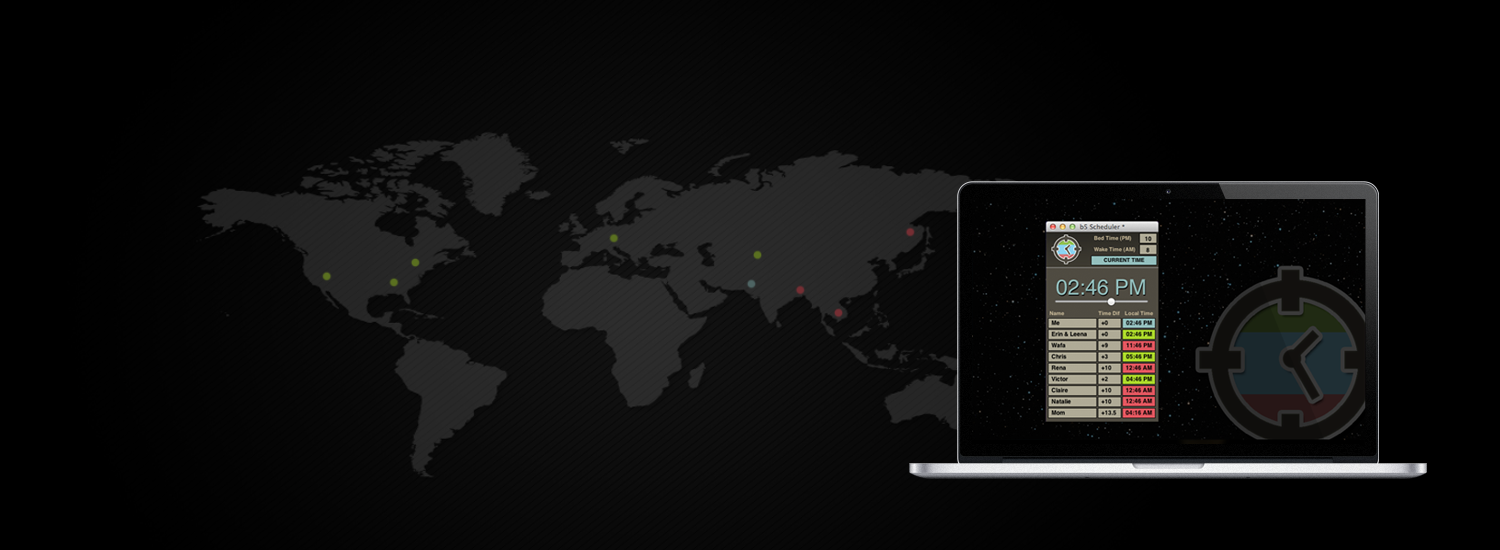
Plan across timezones with ease.
A tiny desktop app for friends and teams scattered across the globe. Track local times and find times that work for everyone. Painlessly.
A tiny desktop app for friends and teams scattered across the globe. Track local times and find times that work for everyone. Painlessly.
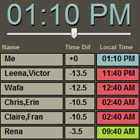
See the local time for all of your friends or team at a glance. Save your time difference settings and never calculate local times again.
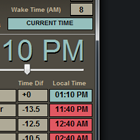
See if its a convenient waking or working hour for anyone in the group. Times are shown in red or green to indicate convenience.
Slide the sidescroller to quickly see what times are best and worst for your group to plan an online meeting.
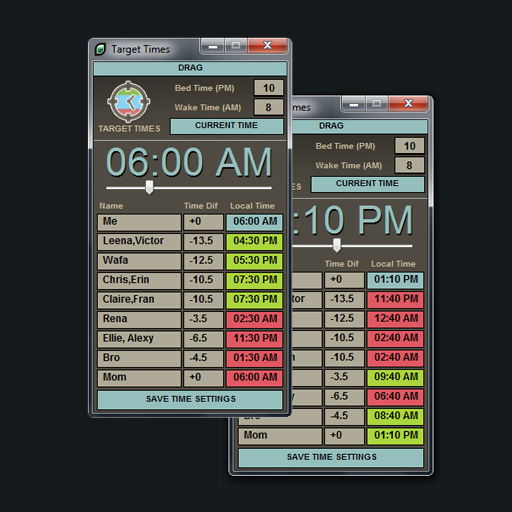
To get started, type the names of folks you are going to track in the name column. Then for each person enter the time difference in hours in the corresponding "Time Dif" column. Earlier timezones are denoted with a "-" (minus) sign before the number. Hit the "save time settings" button, and you never have to fill these details again! Hit the "current time" button to see everyone's current time.
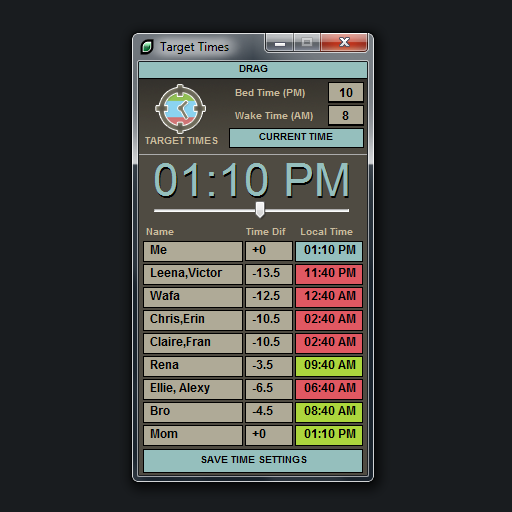
Fill in the "Bed time" and "Wake Time" to set bounds for convenient times. If you only want to track working hours then treat the fields as "End time" and "Start Time". Plan ahead by using the slider and watch as the times and colors update. When all colors are green, you have discovered a convenient time for all to meet online!
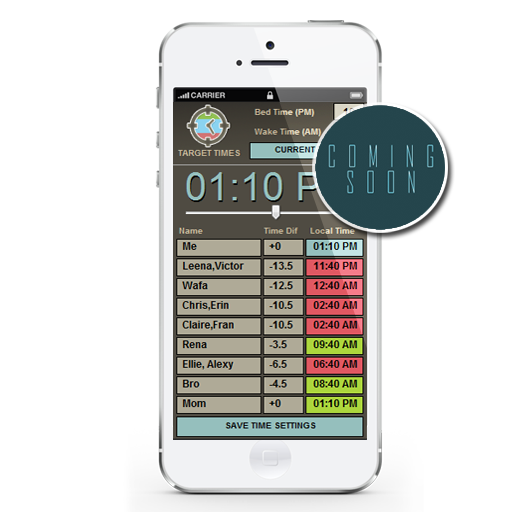
An iPhone version is in the works. The new version will automatically set your local time as you travel, and adjust your time difs accordingly.
TargetTimes was written in LiveCode, by Rishi Ghosh. Rishi was having a tough time keeping track of time zones after college, when his friends were spread across the globe for work and travel. The idea was to build an app that would give a glance of the local time for each friend as well as a sense of whether it was a good time to chat. The slider was added to quickly help visualize what times work best for the group to video chat online.